

Last update:
Create an SSO integration
Aug 21, 2026
To create an SSO integration:
- Sign in to the Aikyam Identity Console.
- In the left navigation pane, select Applications. Alternatively, you can select View Applications tile on the Dashboard.
- Select the application you want to configure.
- Navigate to the Single sign-on tile and click View & Update to open the side pane.
- Click Create integration which opens a dialog box with two options:
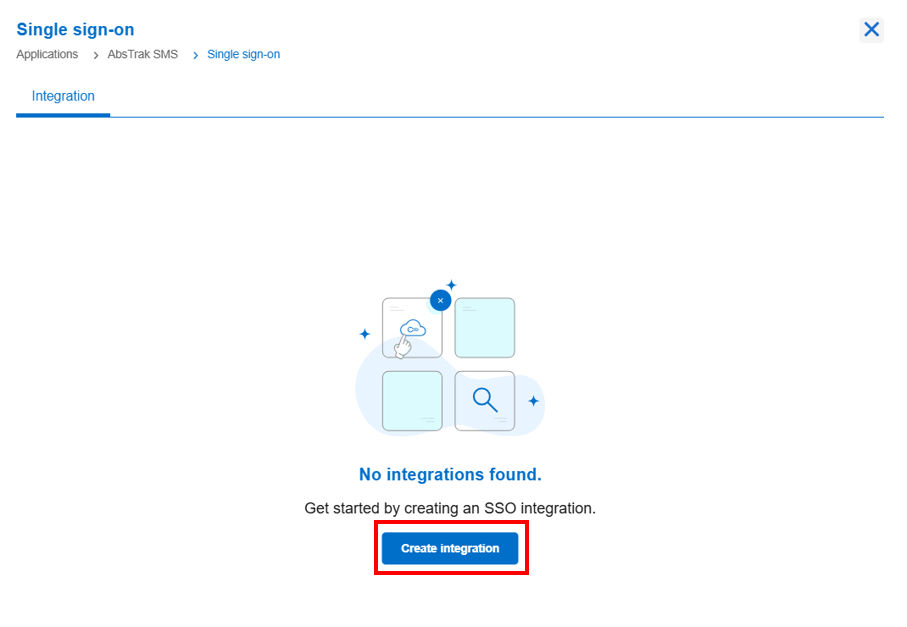
- SSO Inbound: Users log in to your application via an external identity provider and are then redirected to your application, or
- SSO Outbound: Users log in to your application via tenant ID and are then redirected to an external application.Select the correct type based on whether your application is the target (Inbound) or the source (Outbound) of authentication.
- SSO inbound configuration If you select SSO Inbound, configure the following required fields:
- Identifier (Required): A unique identifier for integration. You can enter a custom value or click Auto generate.
- Inbound assertion type (Required): Select the format for the authentication assertion: JWT, OPEN_TOKEN, or HSID_TOKEN.
- Tenant Integration (Required):
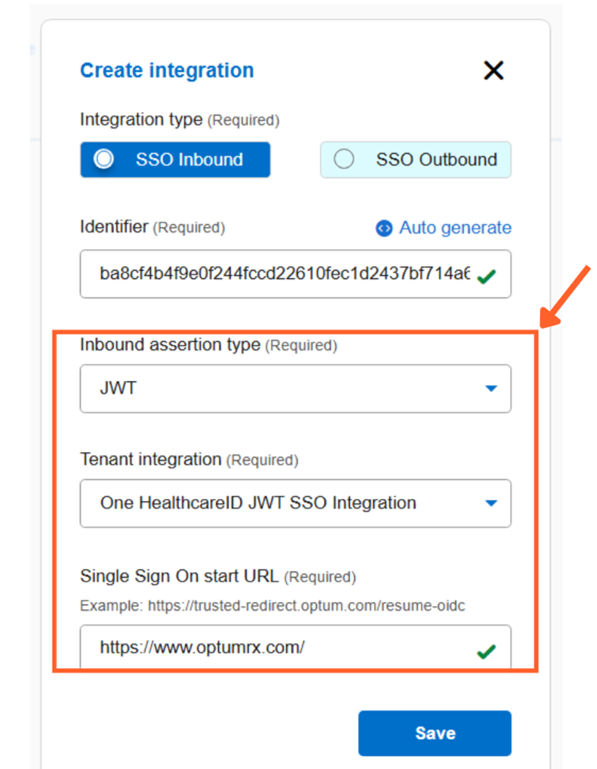
- In OHID applications, if you select JWT as the assertion type: The tenant integration field displays only specific integration, such as One Healthcare ID JWT SSO Integration.
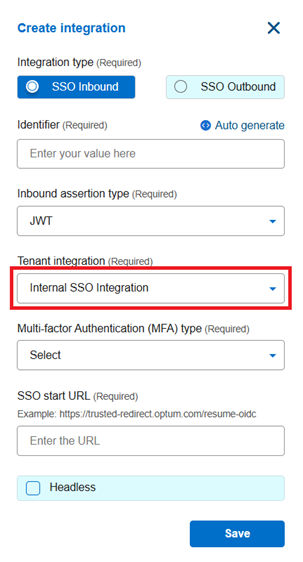
- In HSID applications, if you select JWT as the assertion type, the tenant integration field displays only specific integration, such as Internal SSO Integration.
- If you select OPEN_TOKEN as the assertion type: The Tenant integration field displays a broader range of options. Multiple integrations supporting OpenToken assertions are available for selection, which supports varied external identity providers and federated authentication scenarios.
- In HSID applications, if you select HSID_TOKEN as the assertion type: The Inbound assertion type field displays two assertion types: Standard SSO and Trusted SSO
- In OHID applications, if you select JWT as the assertion type: The tenant integration field displays only specific integration, such as One Healthcare ID JWT SSO Integration.
- Multi-factor Authentication (MFA) type (Required): Select the type of multi-factor authentication you want to enable: Adaptive authentication, Multi-factor authentication, or Bypass multi-factor authentication
- SSO start URL (Required): The URL where authentication begins.
- Click Save.
SSO outbound configurationIf you select SSO outbound, configure the following required fields: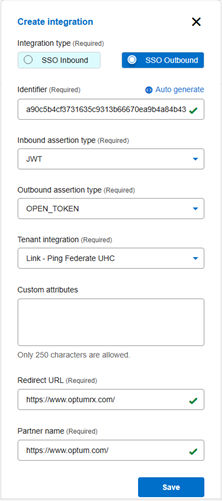
- Identifier (Required): A unique identifier for integration. You can enter a custom value or click Auto generate.
- Inbound assertion type (Required): Select JWT as the format for the authentication assertion.
- Outbound assertion type (Required): Select OPEN_TOKEN as the outbound authentication assertion. This ensures that the data is securely encapsulated in an encrypted key-value format.
- Tenant integration: Select the appropriate tenant.
- Custom attributes: Refers to the optional key-value pairs included in the SSO assertion to transmit additional user-specific data to the target application.
- Redirect URL: Enter the URL where the external application expects the authentication response.
- Partner name: Enter the identifier for the external partner application as registered in PingFederate.
- Click Save.
Share additional feedback to help us improve.
0/255
|
Powered by Aikyam @2025 All rights reserved

+1 866 451 2735
 +1 866 451 2735

+1 855 819 5909