

Last update:
Contact information
Aug 21, 2026
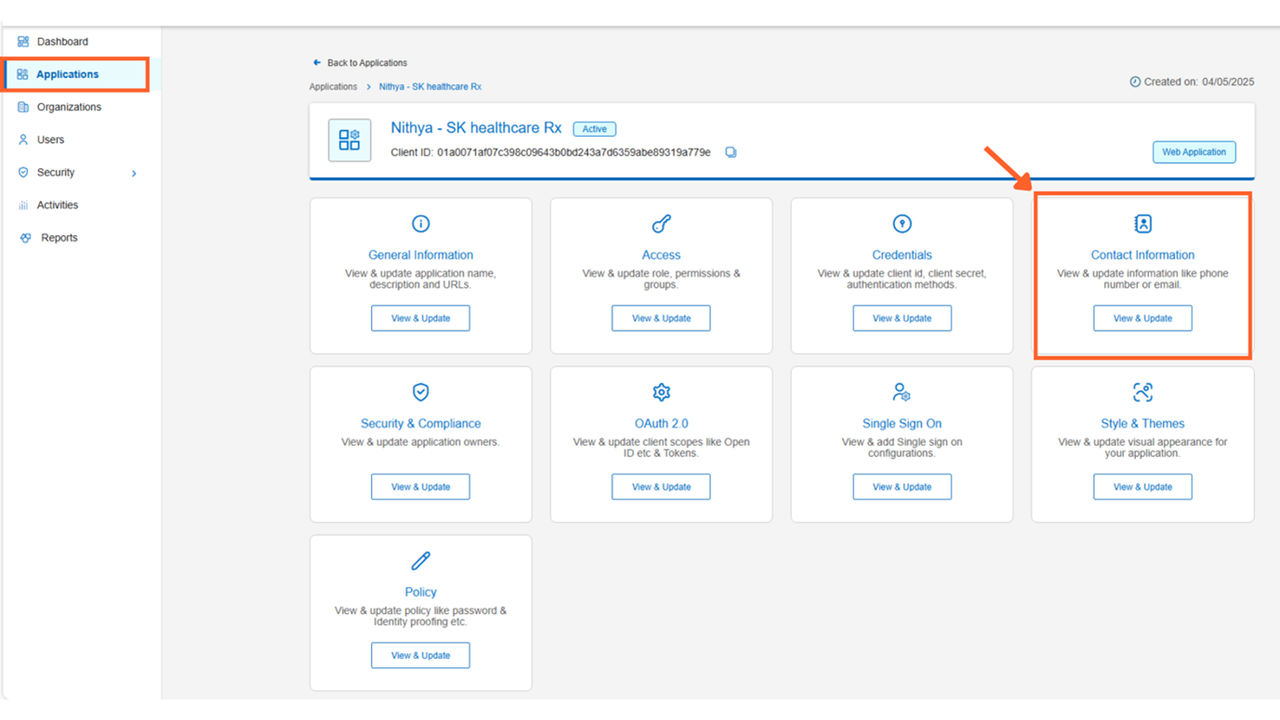
The Contact Information tile allows app owners to provide essential contact details, including phone number and email address, for support and assistance. This ensures users can easily find and access support contact details from the portal.
Steps
To view and edit your app’s contact details:
- Sign in to the Aikyam Identity Console.
- In the left navigation pane, select Applications. Alternatively, you can select View Applications tile on the Dashboard.
- In the left navigation pane, select Applications. Alternatively, you can select View Applications tile on the Dashboard.
- Go to the Contact Information tile and click View & Update.
- Fill in the following fields:
- Name: Provide the name of the contact person.
- Email Address: Enter the email address for support inquiries.
- Phone Number: Input the phone number for direct contact.
- AIDE ID: Refer to the IR form and enter the AIDE ID in this field.
- Chatbot support: Toggle to enable and select the type of support from the dropdown list or disable the chatbot support.
Note: For OHID applications: Chatbot Status is always enabled in both Prod and Non Prod environment.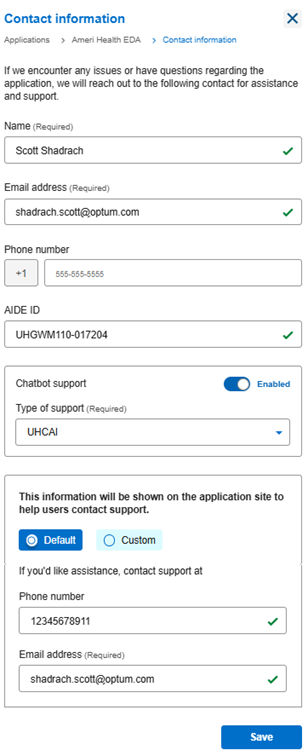
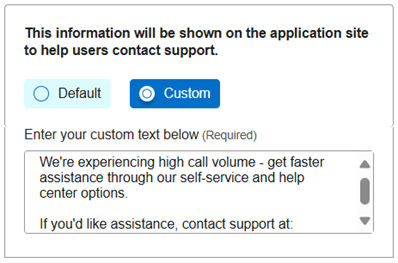
- Choose whether to display the Default or Custom contact information on the application site.
- Phone Number : Specify the country code and enter the phone number.
If you select Default: Fill in the following fields:- Email Address (Required): Provide the required email address for support.
If you select Custom:- Enter your custom text in the provided text box.
- Click Save to apply the changes.
Contact support information on the application site
The below image shows how the contact support information is displayed on the application site based on the configuration made in the identity console:
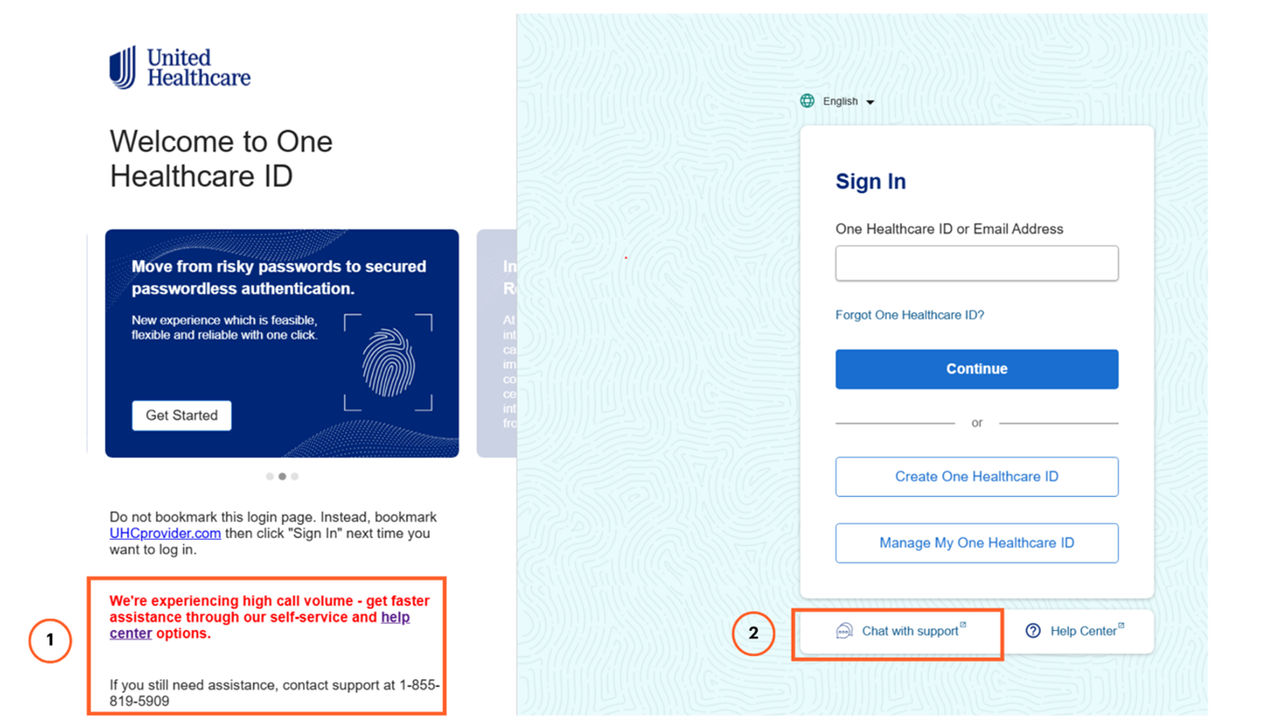
Legends
- Custom text added to the Contact Information section.
- Chatbot Support, which appears only if the “Enable” toggle is turned on.
Share additional feedback to help us improve.
0/255
|
Powered by Aikyam @2025 All rights reserved

+1 866 451 2735
 +1 866 451 2735

+1 855 819 5909