

Last update:
Configure authentication settings
Aug 21, 2026
The Authentication config tab allows administrators to set up authentication policies for applications under Single Sign-On (SSO). Use this interface to configure multi-factor authentication, primary and secondary authentication methods, and recovery mechanisms to secure access for users.
Steps
To create an SSO integration:
- In the left navigation pane, select Applications. Alternatively, you can select View Applications tile on the Dashboard.
- Select the application you want to configure.
- Navigate to the Policy tile and click View & Update to open the side pane.
- Click Authentication tab.
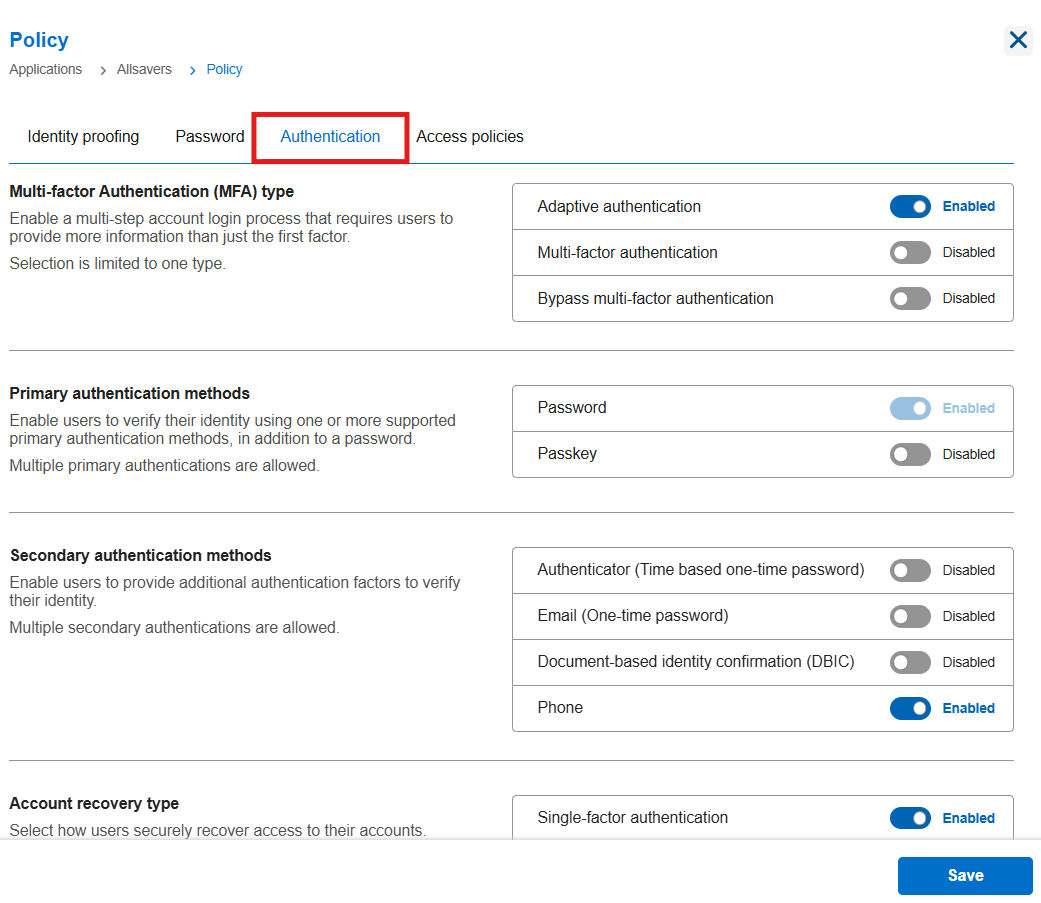
- Select the Multi-factor authentication type.
- Choose the type of multi-factor authentication (MFA) to enforce for users. Toggle to enable or disable the following options based on your requirements:
- Adaptive Authentication (Recommended: On) - Leverages contextual signals (such as location, device fingerprint, or IP address) to dynamically enforce additional verification steps.
- Multi-Factor Authentication - Requires users to authenticate using a second factor in addition to their primary login credentials.
- Bypass Multi-Factor Authentication - Allows trusted sessions to bypass MFA under predefined conditions.
- Select primary authentication methods. Define how users sign in to their accounts. You can enable multiple methods.
- Password: Traditional username and password-based authentication.
- Passkey: A phishing-resistant, passwordless authentication method using cryptographic credentials bound to the user’s device.
- Select secondary authentication methods.
- Add a second layer of verification for users during the sign-in process. Toggle to enable or disable the following options based on your requirements:
- Phone:Recommended: OnVerifies identity through a one-time code sent to a verified registered mobile number.
- Phone:
- Select account recovery type.
- Specify how users can recover their accounts if the primary method fails. Toggle to enable or disable the following options based on your requirements:Single-Factor authenticationAllows recovery using single-verified factor such as recovery code.Multi-Factor authenticationRequires more than one verified factor to recover the account.
- Select recovery method.
- Choose how users can recover their accounts.Recovery CodeAllows users to regain access using a secure, pre-generated recovery code.Phone based proofing (PBIC)Allows users to regain access by verifying identity by confirming the ownership of a provided mobile phone number.
- Enable RBA Whitelist (Risk-Based Authentication)
- Allow users to bypass multi-factor authentication (MFA) from trusted IP addresses. Use the toggle to turn this setting on or off.
- Add IP rangeDefine IP ranges where users can sign in without being prompted for MFA.
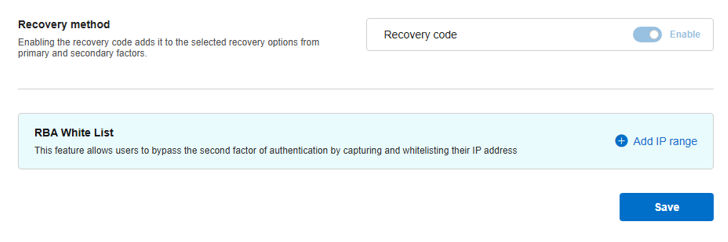
- Add IP range
- Click Save.
Share additional feedback to help us improve.
0/255
|
Powered by Aikyam @2025 All rights reserved

+1 866 451 2735
 +1 866 451 2735

+1 855 819 5909