

Last update:
Manage source application
Aug 21, 2026
In the Aikyam Identity Console (AIC) admin 1.0, a single application could be associated with multiple clients. In AIC admin 2.0, however, the model has changed to a one-to-one relationship, where each application is associated with a single client. As a result, during the migration from admin 1.0 to admin 2.0, an application that was linked to multiple clients in admin 1.0 is migrated as multiple separate applications in admin 2.0, one for each client.
To preserve the relationship between these migrated applications, the concepts of Source Application and Linked Application are introduced. These concepts enable related applications to remain associated after migration.A Source Application serves as the primary application in the relationship and must always be a web application. Connecting a Source Application helps ensure that the appropriate policies and configurations are applied to the associated Machine-to-Machine (M2M) application. Applications linked to the Source Application are referred to as Linked Applications.
- Steps
- In the left navigation pane, select Applications. Alternatively, you can select View Applications tile on the Dashboard.
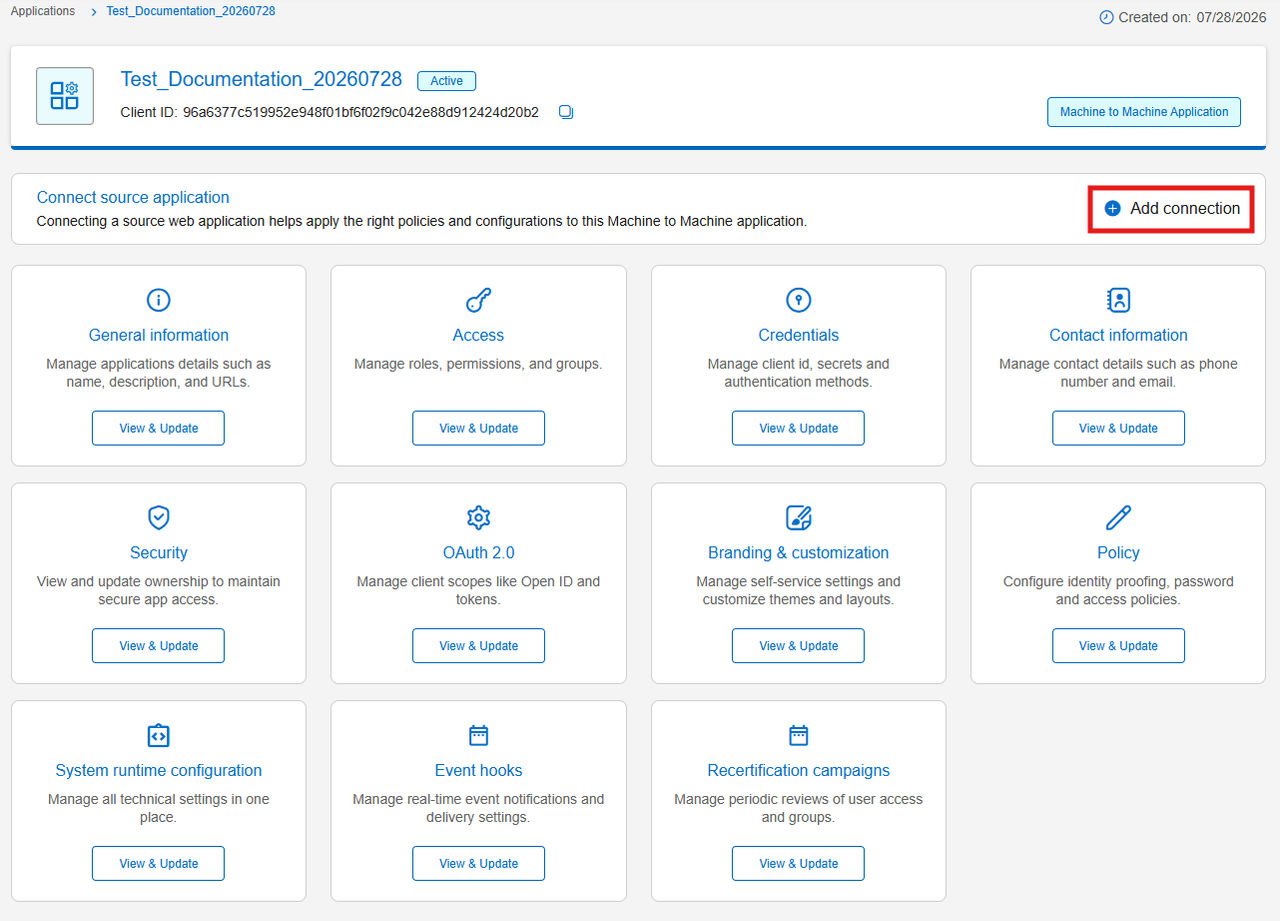
- Select the service application you want to connect to the source application.
- In the Connect source application area, click Add connection. The Connect source application dialog box appears
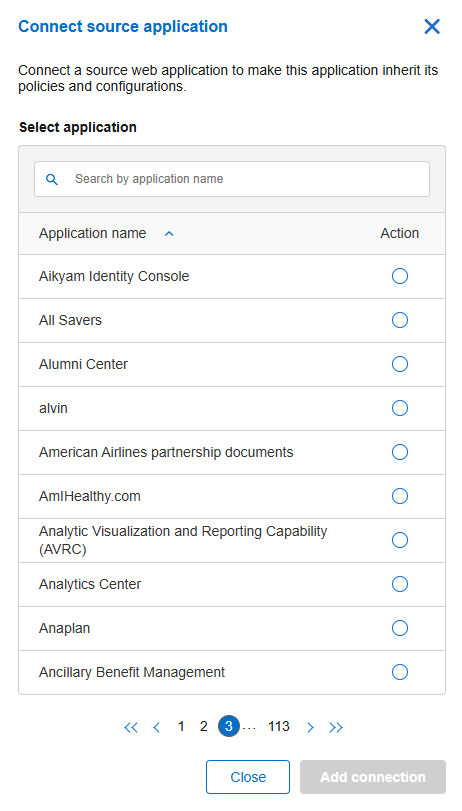
- In the Connect source application dialog box, use the search box to find the source application name, and then select the source application against its name under the Action column.
- Click Add connection. A confirmation message appears.
Remove an application connection
You can remove an application connection from the service application or the web application.
Steps- In the left navigation pane, select Applications. Alternatively, you can select View Applications tile on the Dashboard.
- Select the application.
- Remove the application connection:
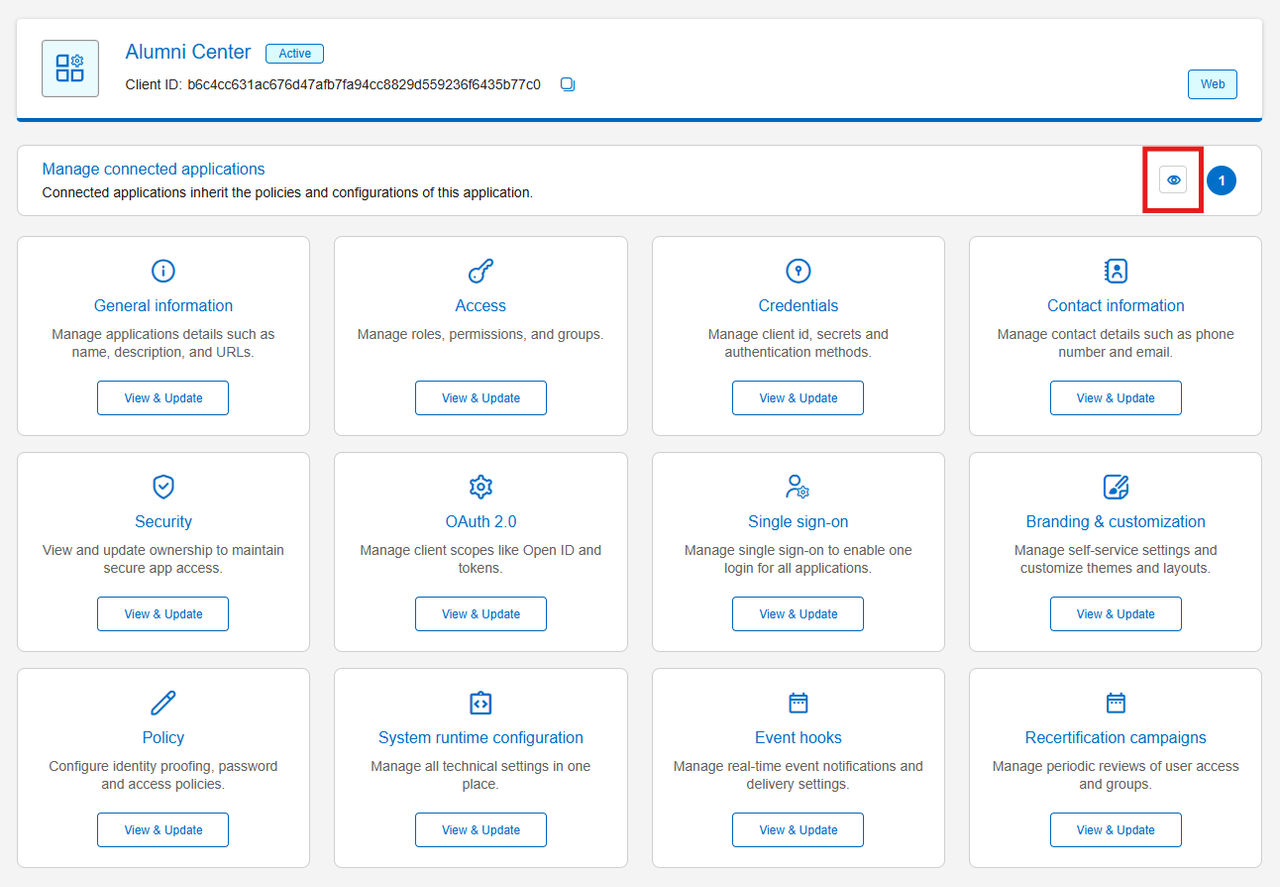
- If you have selected a web application, click view connected applications icon.
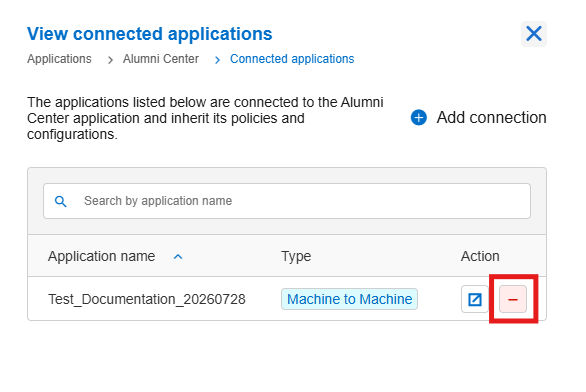
- In the view connected applications dialog box, click the delete icon.
- Click Remove connection. A confirmation message appears.
 OR
OR- If you have selected a service application, in the Manage source application area, click the delete icon. A confirmation message appears.
- Click Remove connection.
- If you have selected a web application, click view connected applications icon.
Share additional feedback to help us improve.
0/255
|
Powered by Aikyam @2025 All rights reserved

+1 866 451 2735
 +1 866 451 2735

+1 855 819 5909