

Last update:
Manage authentication and registration policies
Aug 21, 2026
The Access policies tab enables you to define authentication behaviors and registration policy settings for your application.
Note: Tenant-level authentication and registration policies are set by default. You can toggle this default policy off and configure it according to your requirements.
Steps
- In the left navigation pane, select Applications. Alternatively, you can select View Applications tile on the Dashboard.
- Select the application you want to configure.
- Navigate to the Policy tile and click View & Update.
- Under Access policies tab, you can
- Configure authentication policies, and
- Configure registration policies
- Configure COPPA compliance settings
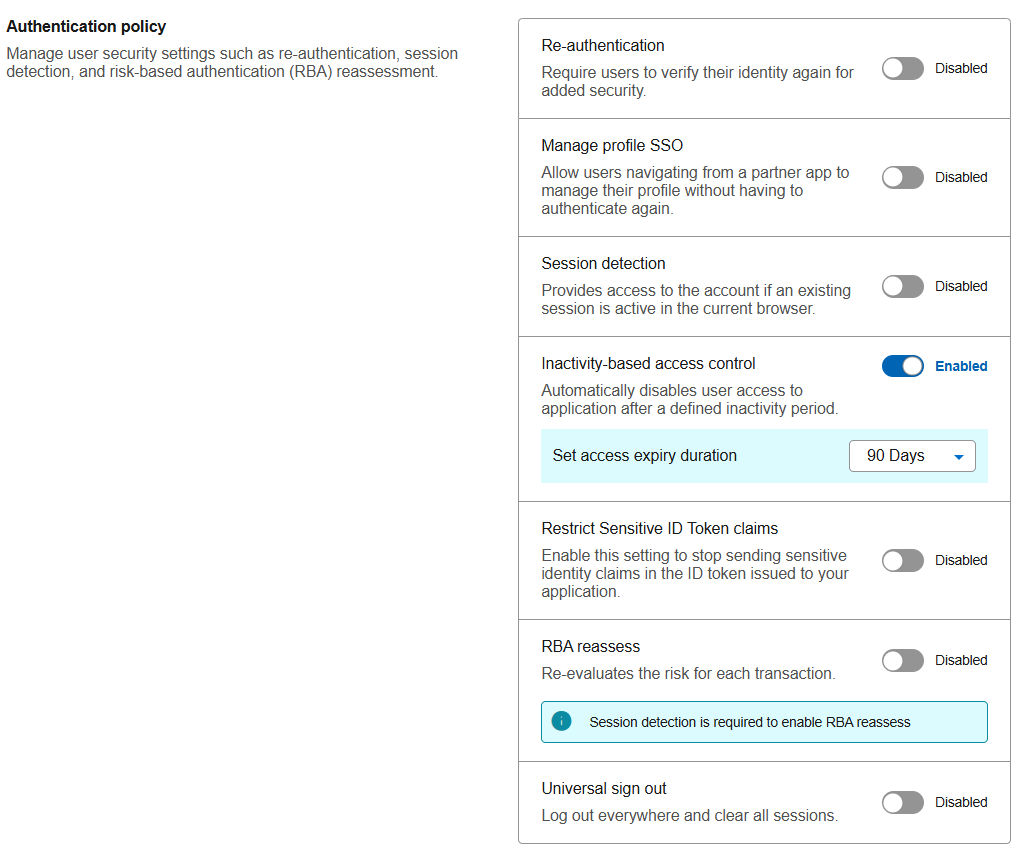
a. To configure authentication policies,- Re-authentication: Select this option if users need to verify their identity again before accessing sensitive features or data.
- Manage profile SSO: Select this option to enable users to manage their profiles without the need of reauthenticating.
- Session detection: Enable this setting to detect and manage active sessions in the user’s browser. This helps prevent duplicate logins and unauthorized session access.
- Inactivity-based access control: Enable this setting to automatically disable the user access to the application after a defined inactivity period. If you enable it, select the duration from the Set access expiry duration dropdown list.
- Restrict Sensitive ID Token claims: Enable this setting to stop sending sensitive identity claims in the ID token issued to your application.Note: This is an HSID-specific setting only.
- RBA reassess: Select this option if you want to reassess the user’s risk level during an authentication attempt. This requires Risk-Based Authentication to be enabled.
- Universal sign out: Select this option if you want to log out of multiple applications and services with the single sign-on.
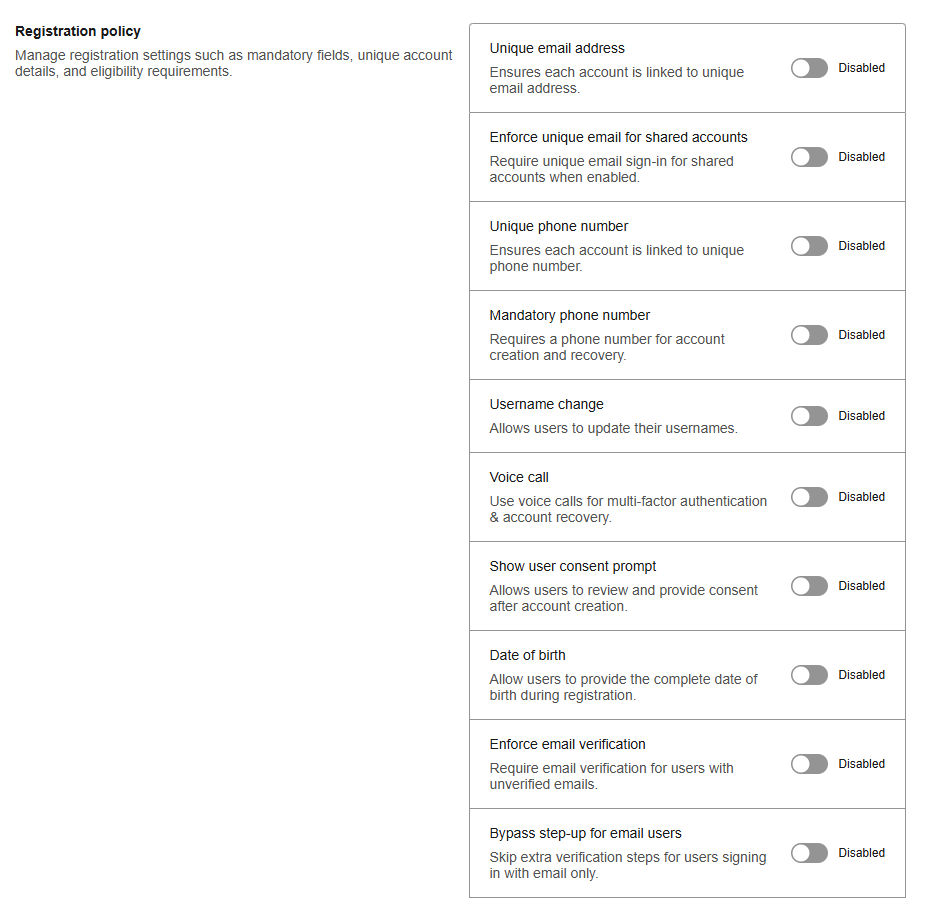
 b. To configure registration policies,
- Unique email address: Select this option to prevent multiple accounts from using the same email address.Note: For OHID applications, it is recommended to enable the unique email address.
- Enforce unique email for shared accounts: Select this option if you want to enforce a unique email for sign-in for shared accounts whenNote: This is an HSID-specific setting only.
- Unique phone number: Select this option if each user must have a distinct phone number.
- Mandatory phone number: Requires user to provide a phone number during registration.
- Username change: Allows user to update their username after registration.
- Voice call: Enables phone call verification during the authentication process.
- Show user consent prompt: Displays a consent prompt during registration or login to collect user consent.
- Date of birth: Requires user to provide a date of birth during the registration process.Note: For OHID applications, it is recommended to enable the Date of birth.
- Enforce email verification: Enables enforced email verification of email for users with unverified emailNote: This is an HSID-specific setting only.
- Bypass step-up for email users: Select this option if you want to skip extra verification steps for users signing in with email only.
c. COPPA compliance settingsProtects the privacy of children under 13 by requiring parental consent and limiting data collection.- COPPA restriction: Never disable the COPPA (Children's Online Privacy Protection Act) Compliance. This field enforces restrictions to prevent users under age 13 from registration, as required by COPPA regulations.Note: This is a federal legal requirement that prohibits access to your platform by users under the age of 13. Non-compliance can result in substantial financial penalties for each violation.
- COPPA consent: Requires verified parental consent for users under 13 to access the portal.
- Legal review: If an application chooses not to enforce COPPA, it must first consult with legal counsel. A formal written statement from legal counsel, explicitly authorizing the bypass of COPPA, must be submitted to us. This is the only acceptable condition under which COPPA enforcement may be bypassed.
- Click Save.
For HSID applications:
- Date of birth + at least one COPPA setting (COPPA Restriction or COPPA Consent) must be enabled.
- If DOB is disabled, all COPPA settings must also be disabled. In this case, a Legal Review is required to ensure compliance.
For OHID applications:
- Date of Birth is recommended but not mandatory.
- At least one COPPA setting, ie COPPA Restriction or COPPA Consent, must be enabled, regardless of whether DOB is enabled or disabled.
- If neither COPPA setting is enabled, a Legal Review is required to ensure compliance.
Best practices for configuring policies
- Enforce strong password complexity by requiring special characters and a minimum length.
- To minimize compliance risks and avoid delays due to legal review, enable both DOB and COPPA settings.
- Enable user consent prompts to comply with privacy regulations such as HIPPA and COPPA.
- Review and adjust re-authentication settings for sensitive operations.
Share additional feedback to help us improve.
0/255
|
Powered by Aikyam @2025 All rights reserved

+1 866 451 2735
 +1 866 451 2735

+1 855 819 5909