

Last update:
DBIC during recovery of an existing account during registration
Aug 21, 2026
The following procedure describes the DBIC flow of a recovery of an account during registration with a new email address and a valid mobile number.
Steps
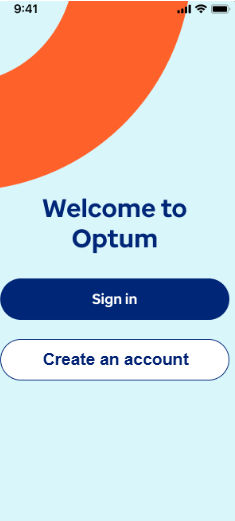
- On the portal, tap Create an Account.
- Complete these boxes:
- First name: Enter the user’s first name.
- Last name: Enter the user’s last name.
- Email: Enter the user’s primary email address.
- Date of birth: Enter the user’s date of birth in MM-DD-YYYY format.
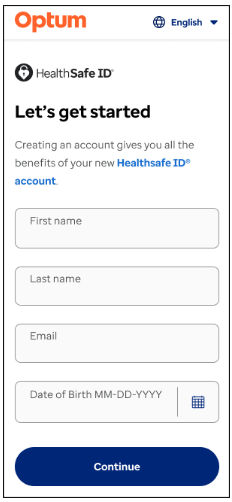
- Tap Continue.Note: An email with a 6-digit code is sent to the email address for verification.
- In theEnter the 6-digit code box, enter the code, and then tap Continue
- In the Phone number box, enter your phone number along with your country code, select the appropriate country code from the dropdown list. For example, +1 XXX-XXX-XXXX.Note: A text message with the 6-digit code is sent to the user’s phone.
- In theEnter the 6-digit code box, enter the code, and then tap Continue.
- The Document-based Identity Confirmation process begins, for more information, see DBIC during account recovery.
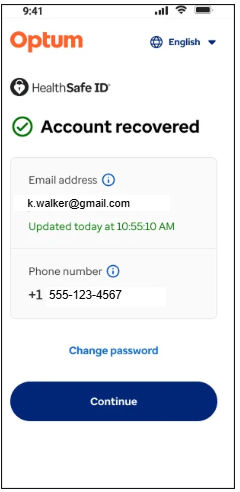
- After the user has completed following the DBIC verification steps, the user is directed to Account recovered screen, tap Continue. The Change your password screen appears.
- Enter a new password in the New password and Confirm password box, and then tap Change password link. The Sign in to your account screen appears.
- In the Email or username box, enter the email address or username.
- In the Password box, enter the new password, and then click Continue. The user is signed into the portal.
Share additional feedback to help us improve.
0/255
|
Powered by Aikyam @2025 All rights reserved

+1 866 451 2735
 +1 866 451 2735

+1 855 819 5909