

Last update:
DBIC during account recovery
Aug 21, 2026
Document‑Based Identity Confirmation (DBIC) process may be triggered during different account recovery scenarios across the UHG portals. This depends on the defined policies. The DBIC flow applies to account recovery during registration, reset password, can’t access this phone number, and forgot username.
Watch the account recovery scenarios in DBIC:
The below procedure provides detailed information about the DBIC flow during account recovery scenarios.
Steps
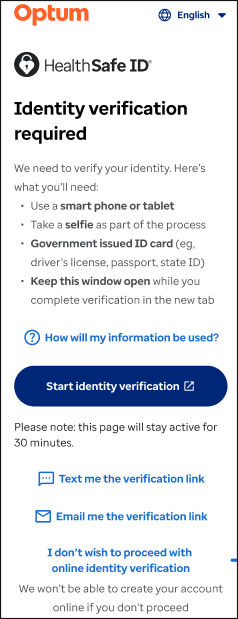
- On the Identity verification required page, tap Text me the verification link or Email me the verification link to select the method of receiving the verification link.
- Note: Depending on the selected method, the user is prompted a confirmation screen, and an identity verification link is sent.
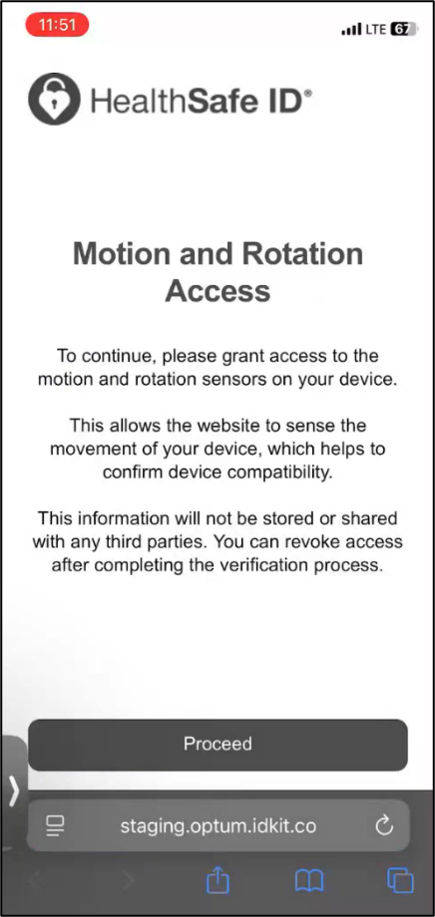
- On the Motion and Rotation Access screen, tap Proceed.
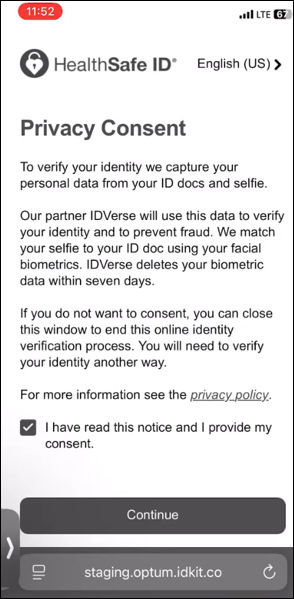
- On the Privacy Consent screen, tap Continue.
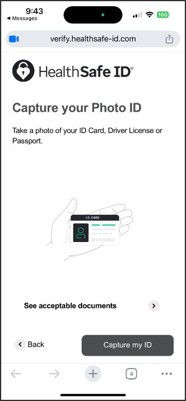
- On Capture your Photo ID screen, tap Capture my ID.
- Take a snapshot of the front side of the photo ID.
- On Back of card screen, tap Capture my ID.
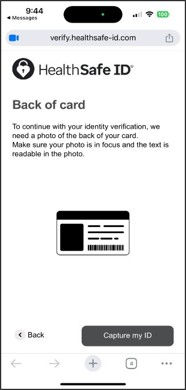
- Take a snapshot of the back side of the photo ID.
- On the Face Verification screen, tap Continue.
- Take a selfie snapshot of the face. The system processes the captured images and displays a verification completion message.
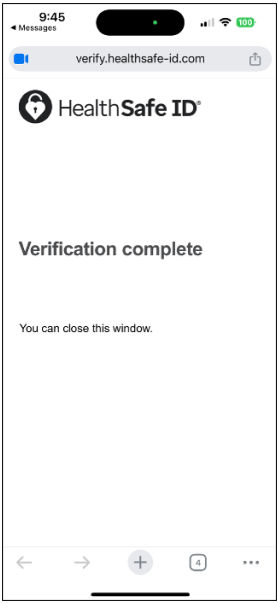 Note: For more information on DBIC-specific account recovery scenarios, see, account recovery during registration, reset password, can’t access this phone number, and forgot username.
Share additional feedback to help us improve.
0/255
|
Powered by Aikyam @2025 All rights reserved

+1 866 451 2735
 +1 866 451 2735

+1 855 819 5909