

Last update:
Login and step-up journey
Aug 21, 2026
Existing users can login using their email address and password.
Note: Username logins are supported for existing non-member users, but it is recommended to use email address for logins. New non-member can login using email address, username support has been removed from the experience.
A guest user can upgrade to a member account by providing the required missing information.
Identity verification (TMX)
- Identification verification is enforced post successful sign-in. Failure in “Identification verification” would fail the sign-In, requiring the user to start over.
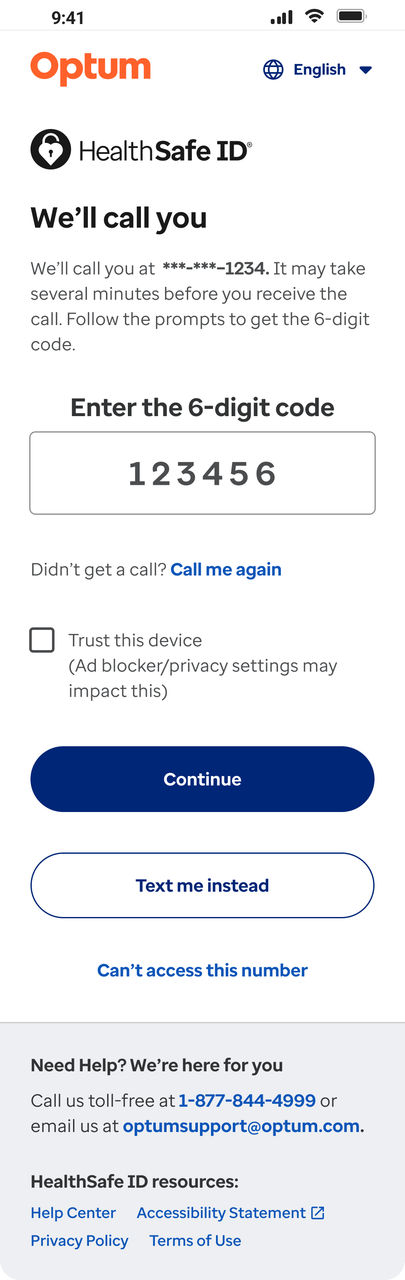
- The user’s Identity can be challenged through phone MFA. Selecting the ‘Trust this device’ checkbox may suppress MFA for 90 days.
- User can verify their phone via OTP sent through call/text to the registered phone number.
- On successful identity verification, the user proceeds to the next steps post sign-in.
Step-up (Step 1) to add missing information
Existing Guest members or users with missing information would be required to step-up. This is a CONDITIONAL and mandatory step displayed for users missing their First name, Last name or Date of Birth on their account. Upon successful validation, the details will be updated on the user account.
Step-up (Step 2) to add identification number
To support the transition from a Guest to a Member experience, the system prompts users to enter their identification number. This step plays a key role in the step-up process by matching user accounts and granting access to personalized benefits.
Step 2: Identification number with choice to skip:
- Guest (unmatched) user accounts can provide their identification number to proceed with the member account upgrade. This step is skippable.
- After successful verification and matching with the EiMP golden record, the user is redirected to the application to display member data and benefits.
- Selecting Skip for now will bypass this step and continue to the portal as a guest account.
- Users with existing headless accounts will be converted.
Sub-Step 2.a: User may have an account
If a golden record is found with First name, Last name, Date of Birth and identification number but is linked to another email address, the user will be logged off the existing session and asked to sign in.
The sign-in screen will not be pre-filled with the email address. They can recover their account or reset their password.
Note: User is provided with three attempts to correct the missing information. If they fail to correct the information, the step-up process will be incomplete. The user can continue to the portal as a Guest account by selecting the “Skip for now” option
Mandatory identity verification (TMX) and EiMP sync
Identity verification (TMX)
After a successful step-up, mandatory identity verification is performed. If the verification fails, the step-up process will not be successful, and the user will need to start over.
EiMP sync
After successful step-up and identity verification, the account will be upgraded and the HSID unique identification number (UUID) will be synced to the EiMP golden record. If the sync fails, the Guest (unmatched) account becomes "Matched Inactive" and redirects to the sign-in screen with an error message. Three EiMP sync retries are performed on each successful sign-in to convert to a Member (matched) account.
Forgot password flow
To reset their password, a user should follow these steps:
- The user clicks “Forgot Password?” on the login screen and navigates to the Reset Your Password screen.
- Email Verification: The user provides a registered email address.
- On the Confirm your Identity screen, the user selects one of two verification options (Text Me or Call Me Instead), receives a verification code via SMS or automated call, and enters the code in the provided field.
- The user enters and confirms the new password on the Reset Your Password screen.
- The system redirects the user to the login page with a "Password reset successful" message, allowing authentication with the new credentials.
Share additional feedback to help us improve.
0/255
|
Powered by Aikyam @2025 All rights reserved

+1 866 451 2735
 +1 866 451 2735

+1 855 819 5909