

Last update:
Configure organization basic details
Aug 21, 2026
This section guides you in providing general information for your organization, such as, name, description, and assigning an organization owner. This section guides you in providing general information for your organization, such as, name, description, and assigning an organization owner.
Steps
To configure the application settings:
- Sign in to the Aikyam Identity Console.
- In the left pane, select Organizations. Alternatively, you can select View organizations at the bottom of the Dashboard. The Organizations page appears.
- In the Search box, search the organization you want to configure.
- Select the organization name to view and edit the organization details.
Let us explore each tile in detail.
General information
The General Information tile enables admins and app advocates to manage basic details of the organization including the organization owner.
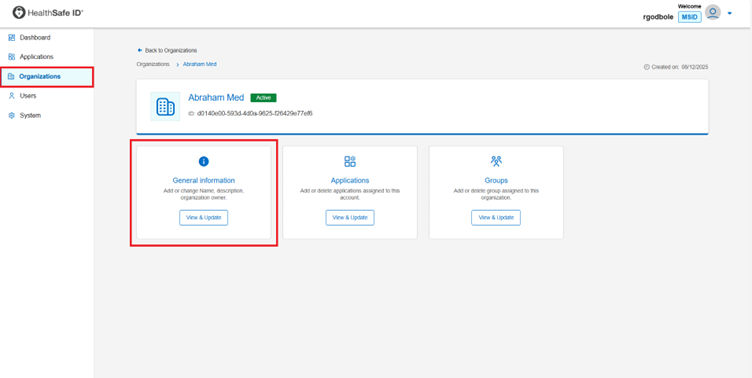
Steps
To view and update the organization’s basic information:
- Sign in to the Aikyam Identity Console.
- In the left pane, select Organizations. Alternatively, you can select View organizations at the bottom of the Dashboard. The Organizations page appears.
- Select the organization you want to configure.
- Go to the General information tile, click View & Update. The General information dialog box appears.
- In the General information dialog box, you can view and update the organization fields:
- Name – The name assigned to the application during registration in the Aikyam Identity Console.
- Description – The description of the organization.
- Assign an organization owner – The list of organization owners.
- Click Save to apply changes.
Assign organization owner
You can assign ownership to designated individuals using these steps to ensure effective organization management:
Steps
- Sign in to the Aikyam Identity Console.
- In the left pane, select Organizations. Alternatively, you can select View organizations at the bottom of the Dashboard. The Organizations page appears.
- Select the organization for which you want to assign an owner.
- Go to the General information tile, click View & Update. The General information dialog box appears.
- Click (+) Add next to the Assign organization owner field. The Assign organization owner dialog box appears.
- In the Assign organization owner dialog box, select the search type and enter the email address, username, or UUID into the designated search field, then click Search.
- Click Add against the displayed name and click Confirm assignment.
Now, the assigned organization owner can manage the organization.
Note: You can add multiple organization owners to any organization.
Revoke organization ownership
To revoke access for an organization owner:
- Sign in to the Aikyam Identity Console.
- In the left pane, select Organizations. Alternatively, you can select View organizations at the bottom of the Dashboard. The Organizations page appears.
- Select the organization for which you want to revoke ownership.
- Go to the General information tile, click View & Update. The General information dialog box appears. The Assign an organization owner box displays the list of organization owners.
- Click the Remove button against the name of the organization owner and click Save. The Success confirmation message appears.
Previous:
Create an organization
Next:
Manage applications
Share additional feedback to help us improve.
0/255
|
Powered by Aikyam @2025 All rights reserved

+1 866 451 2735
 +1 866 451 2735

+1 855 819 5909