

Last update:
Create roles
Aug 21, 2026
Role management is a critical entitlement for both application administrators and application owners. A role is defined as a business function that is entitled to an individual user. Based on the permissions associated with that business function, the user is authorized to perform specific actions within the application. This ensures controlled access for multiple users across the application.
Note: An application admin may perform eligible operations for roles across all applications, such as creating, modifying, assigning, and deleting roles. An application owner, however, is entitled to these operations only for the applications they own.
- To create a role:
- In the left navigation pane, select Applications. Alternatively, you can select View Applications tile on the Dashboard.
- Select the application for which you want to create a role. In this example, search for the SK HealthCare Rx and then select it from the displayed results.
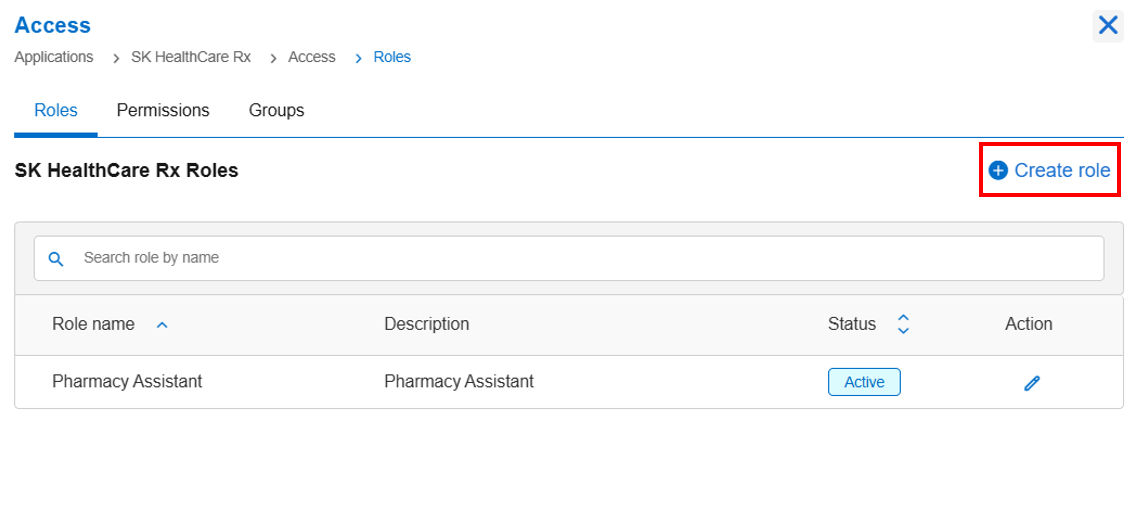
- Go to the Roles tab and click Create Role.
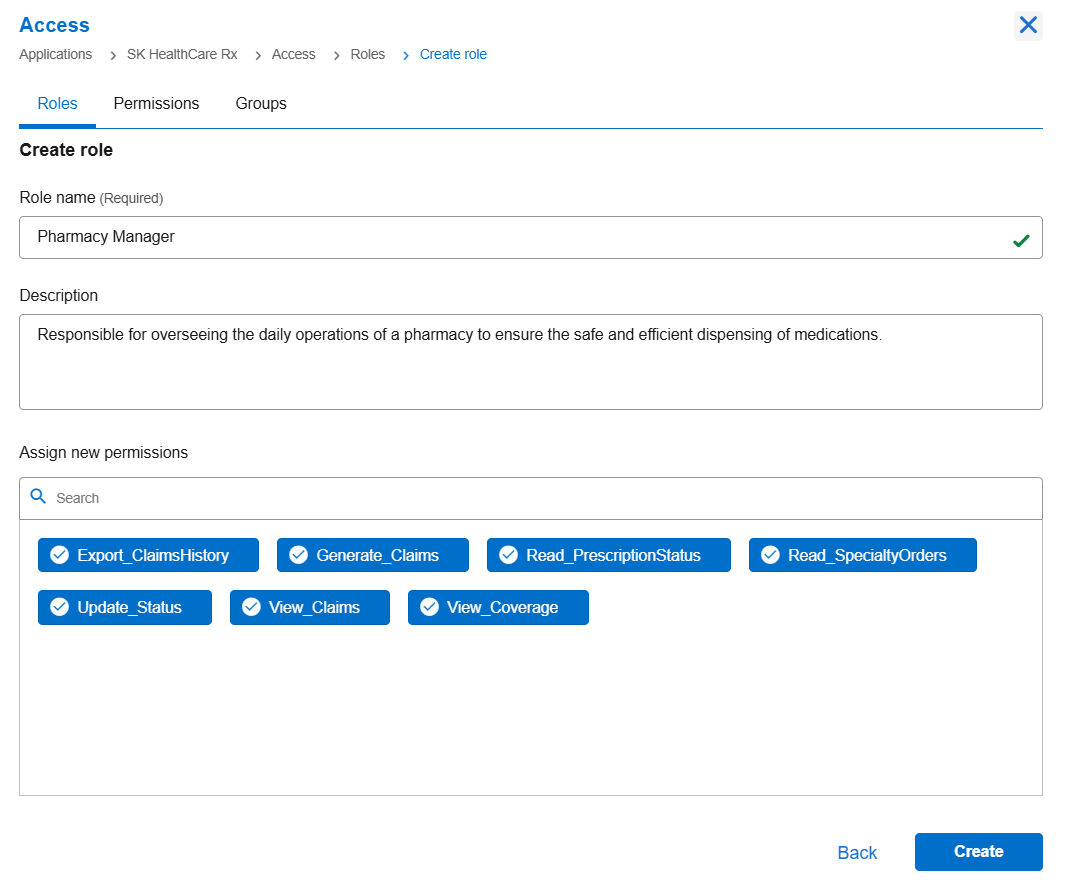
- Enter the details in the following fields: Role Name (Required): Enter a unique and descriptive name for the role. Example: Pharmacy Manager, Claims Processor.Description (Optional): Add a description that explains the purpose of the role.Assign New Permissions: By default, all defined permissions are listed under this field. Select the appropriate permissions to assign to this role.
- Go to the Roles tab and click Create Role.
- Click Create.
Assigning a permission to the existing role
Go to the Access tile and click View & Update.
- Go to the Access tile and click View & Update.
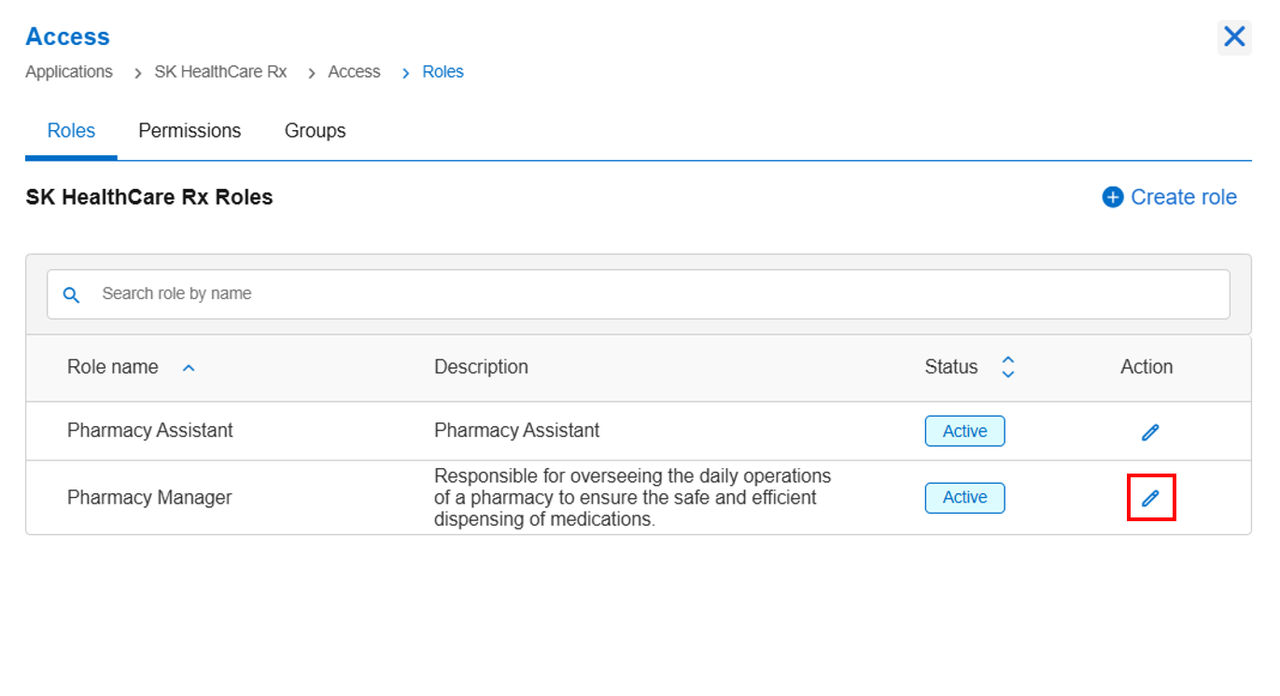
- In the Roles tab, use the search box to find the role to which you want to assign a permission.
- Click the edit icon to open the Edit role window.
- Scroll to the bottom-most section and locate the panel, Assign New Permissions, which displays all permissions that can be assigned to the role.
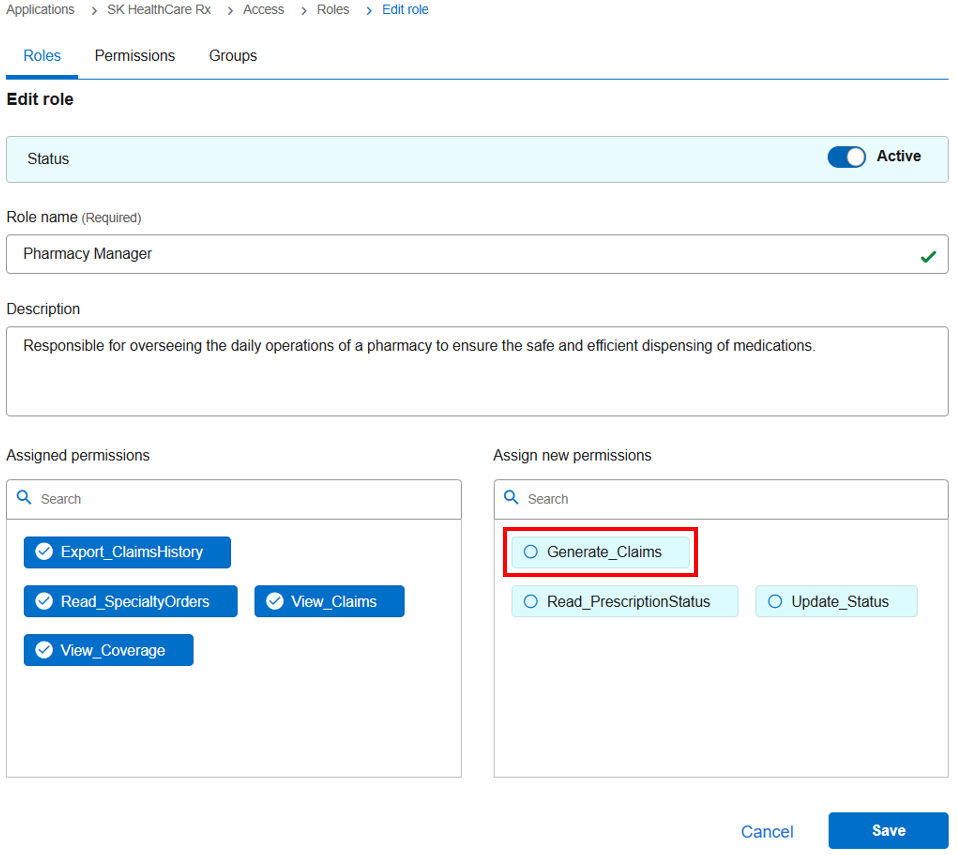
- Select the permission you want and then click Save.
Removing a permission from the role
To remove a permission from the role:
- Go to the Access tile and click View & Update.
- Click the Roles tab.
- Use the search box to find the role from which you wish to delete the permission.
- Click the edit icon to open the Edit role window.
- Scroll to the bottom-most section and locate the panel, Assigned Permissions, which displays all permissions currently bound to the role.
- Click the permission from the list to remove it from the role.
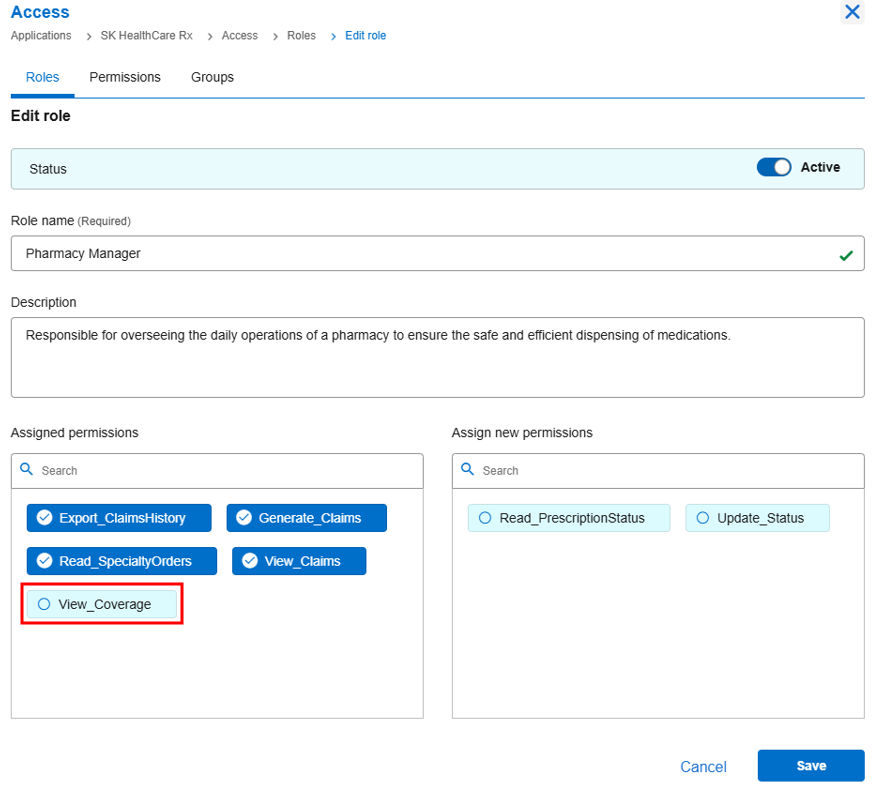
- Click Save.
Previous:
Define permissions
Next:
Create a group
Share additional feedback to help us improve.
0/255
|
Powered by Aikyam @2025 All rights reserved

+1 866 451 2735
 +1 866 451 2735

+1 855 819 5909