

Last update:
Manage groups
Aug 21, 2026
Groups (also known as divisions or departments) are business units that are comprised of users.
Create a group
To create a group:
- Sign in to the Aikyam Identity Console.
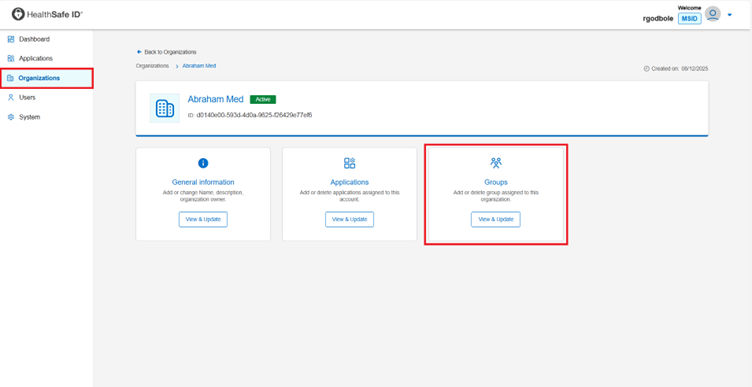
- In the left pane, select Organizations. Alternatively, you can select View organizations at the bottom of the Dashboard. The Organizations page appears.
- Select the organization where you want to create a group.
- Go to the Groups tile, click View & Update. The Groups dialog box appears.
- Click Create group. The Groups dialog box appears.
- Enter group information in the following fields:
- Group Name (Required): Enter a unique name for the group.
- Description: Enter a concise summary that outlines the purpose, responsibilities, and key functions of a specific group, or division within an organization.
- Click Create.
Assign users to a group
To assign users to a group:
- Sign in to the Aikyam Identity Console.
- In the left pane, select Organizations. Alternatively, you can select View organizations at the bottom of the Dashboard. The Organizations page appears.
- Select the organization where you want to add users to a group.
- Go to the Groups tile, click View & Update. The Groups dialog box appears.
- In the Search box, search the group where you want to assign the users and then click the group name. The group name dialog box appears.
- Click Assign Users. A dialog box will appear notifying users assigned to this group will automatically inherit all associated roles. Click Proceed.
- Select the search type and enter the email address, username, or UUID into the designated search field.
- Click Add against the displayed name and click Confirm Assignment.
Remove users from a group
To remove users from a group:
- Sign in to the Aikyam Identity Console.
- In the left pane, select Organizations. Alternatively, you can select View organizations at the bottom of the Dashboard. The Organizations page appears.
- Select the organization where you want to remove the user’s from a group.
- Go to the Groups tile, click View & Update. The Groups dialog box appears.
- In the Search box, search the group name where you want to remove the users and then click the group name. The group name dialog box appears.
- In the Search user by UUID box, search the user you want to remove and click Remove against its name. A dialog box will appear notifying users removed from this group will result in losing access to all the group’s roles. Click Proceed.
Previous:
Manage applications
Share additional feedback to help us improve.
0/255
|
Powered by Aikyam @2025 All rights reserved

+1 866 451 2735
 +1 866 451 2735

+1 855 819 5909