

Last update:
Manage passkeys
Aug 21, 2026
Users can manage passkeys to add new ones, update existing ones, or remove them when no longer needed. Support agents can also manage passkeys for users through the Aikyam Identity Console, based on assigned permissions.
Manage user passkeys as an admin
Tier‑1 support agents can view, disable, or delete passkeys via Aikyam Identity Console (with permission controls). For more information, refer to the section Manage passkeys in AIC .
Manage passkeys (Self-service)
Users can manage passkeys during sign-in or after signing in to a HealthSafe ID of One Healthcare ID account.
Manage passkeys after sign-in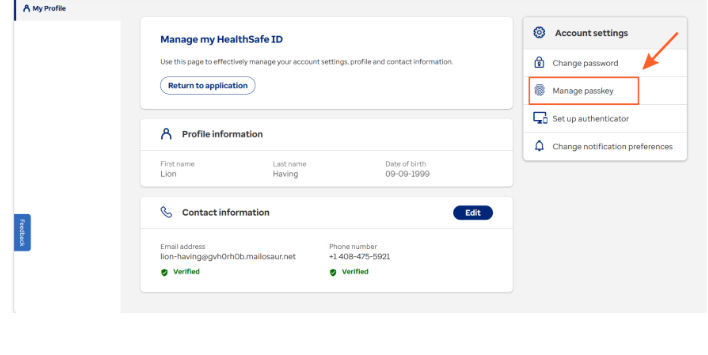
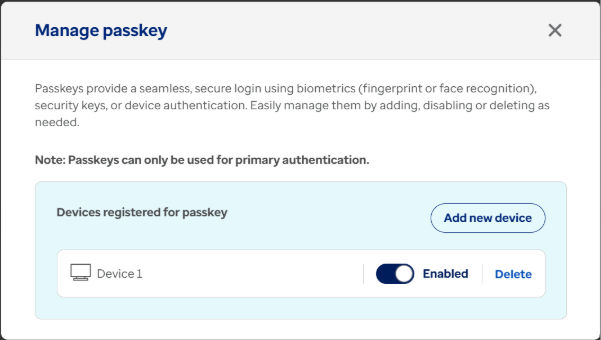
Users can also manage passkeys from the Manage Profile page after signing in.
Steps:
- The user signs in to the HealthSafe ID account and opens the Manage Profile page.
- In Account settings, the user selects Manage passkey.
The Manage passkey window displays the list of registered passkeys, where the user can enable or disable a passkey, select Delete to remove it, or select Add new device to register a new passkey.
Add a new device
Add another device to sign in with a passkey.
- The user opens the Manage Profile page and select Add new device.
- On the Save your passkey screen, the user can:
- Select Continue to save the passkey on the device, or
- Select Change to choose a different storage option.
- This Windows device: Completes verification using the device (PIN, fingerprint, or face recognition).
- iPhone, iPad, or Android device: Scans the QR code and completes verification.
- Security key: Connects the security key and completes verification.
After completing the required verification steps, the new device is added and ready for passkey sign-in.
Enable or disable a passkey
This option allows or prevents a passkey from being used for authentication.
- The user opens the Manage Profile page, locates the device, and turns the Enabled toggle on or off.
- Then, selects Proceed after reviewing the confirmation message.
Delete a registered device
Remove a device if it is no longer used for passkey authentication.
- The user opens the Manage Profile page, locates the device, and selects Delete.
- Then, selects Proceed after reviewing the confirmation message.
HealthSafe ID removes the device from the account. To use the device again, register it as a new device.
Previous:
Desktop experience
Next:
Single Sign On (SSO)
Share additional feedback to help us improve.
0/255
|
Powered by Aikyam @2025 All rights reserved

+1 866 451 2735
 +1 866 451 2735

+1 855 819 5909