

Last update:
Mobile experience
Aug 21, 2026
This section describes how users set up a passkey in mobile applications during HSID account creation or after signing in.
Users can set up a passkey in the mobile app during account creation or after signing in and use it for future sign-ins.
Watch the passkey experience on mobile in action:
New users
A new user creates an HSID account and sets up a passkey during account creation in the mobile app. Let’s see how the user sets up and uses a passkey to sign in.
Set up a passkey during account creation
- A new user completes the standard HSID account creation flow in the mobile app.
- After account creation, the user selects Set up passkey.
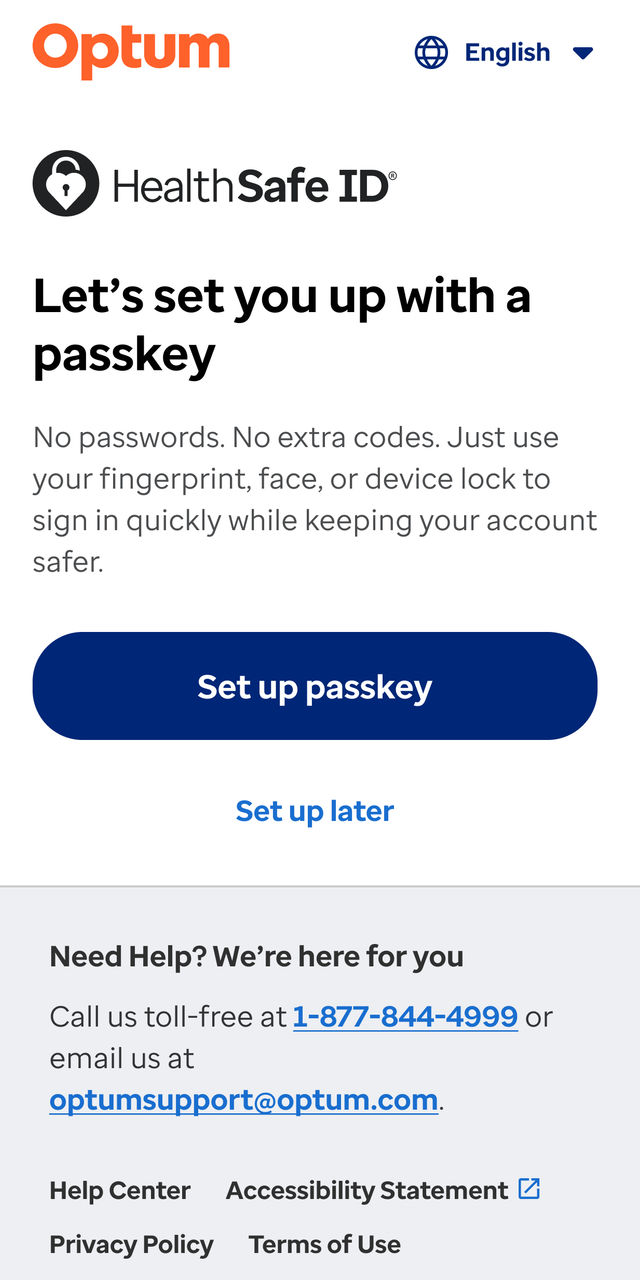
- The device prompts for authentication using Face ID, fingerprint, or passcode.
- Once authenticated, the device securely stores the passkey in its password manager, such as iCloud Keychain or Google Password Manager, and syncs it across the users' devices.
- The user then proceeds to the portal.
Note:
Passkey setup screens may vary based on user device type – example shown for reference.
Sign in using a passkey
- The user selects Sign in.
- The application recalls the user’s email or username, if available.
- If a passkey is available, the system prompts the user to authenticate using one of the following:
- Face ID
- Fingerprint
- Device passcode
- The user completes authentication.
Note:
If the device is shared, the user can clear the auto-filled username, switch accounts, and sign in using their own passkey.
Existing users
An existing user can set up a passkey after signing in to the mobile app.
Passkey setup during sign-in
- The user selects Sign in and enters their email address and password.
- The user completes email and phone verification. The system prompts the user to set up a passkey.
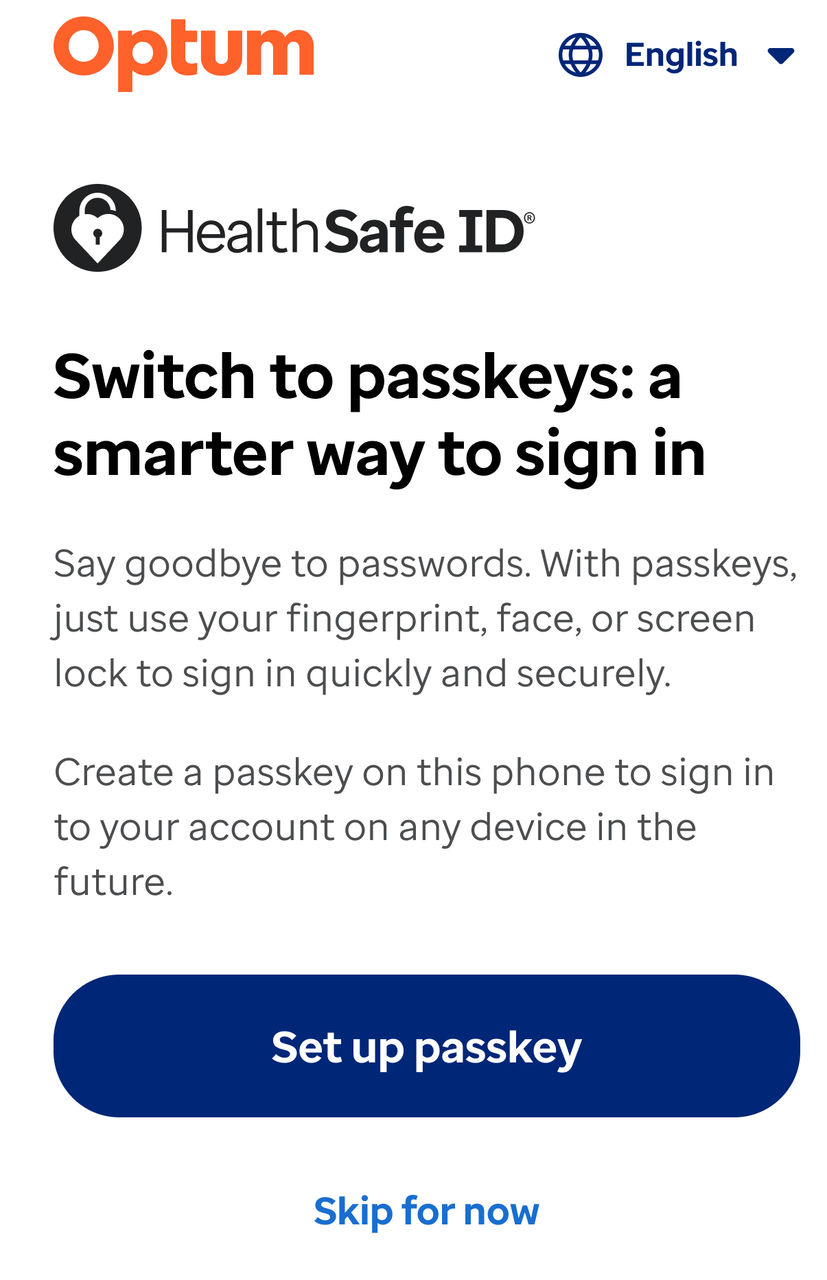
- The user selects Set up passkey. The system prompts the user to authenticate using Face ID, fingerprint, or device passcode. The user completes authentication and creates the passkey on the device.
Previous:
Supported user journeys
Next:
Desktop experience
Share additional feedback to help us improve.
0/255
|
Powered by Aikyam @2025 All rights reserved

+1 866 451 2735
 +1 866 451 2735

+1 855 819 5909