

Last update:
Bulk action
Aug 21, 2026
The Bulk action feature allows administrators to activate or deactivate multiple users by uploading a CSV file. This reduces manual effort and ensures consistency when managing users at scale.
Steps to perform a bulk action:
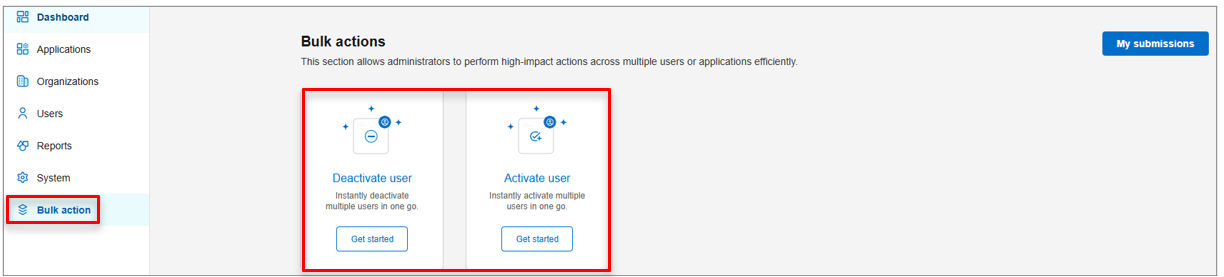
- Select Bulk action from the left navigation pane.
- Under Deactivate user or Activate user, select Get started.
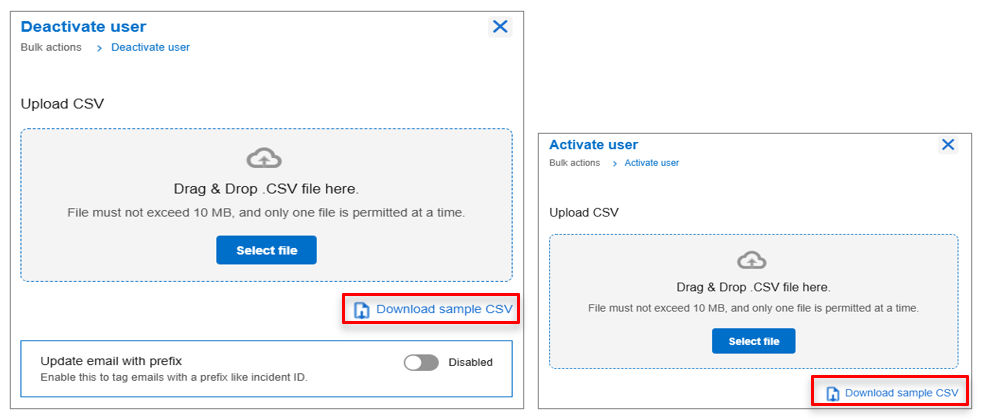
- Upload a CSV file containing user details or select Download Sample CSV to use the supported format.
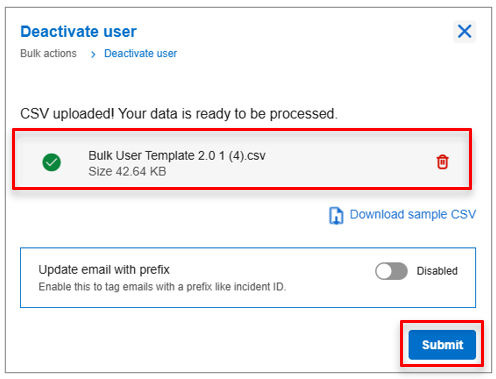
- Select Submit to complete the action.
Additional step for Deactivate user only- (Optional)
When deactivating users, an optional configuration is available:
- Use the toggle button to enable or disable the Update email with prefix option.
Steps to verify the bulk action upload:
- Select the My submissions tab.
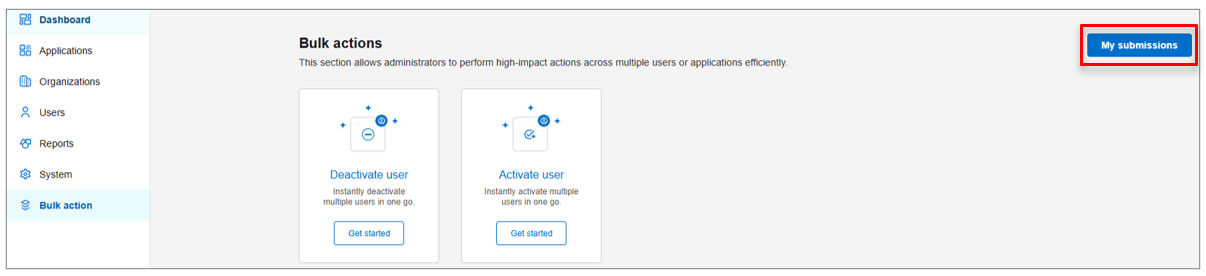
- Review the Status column to check whether the action was completed successfully or failed.
- If the status is Failed, select Download from the Action column.
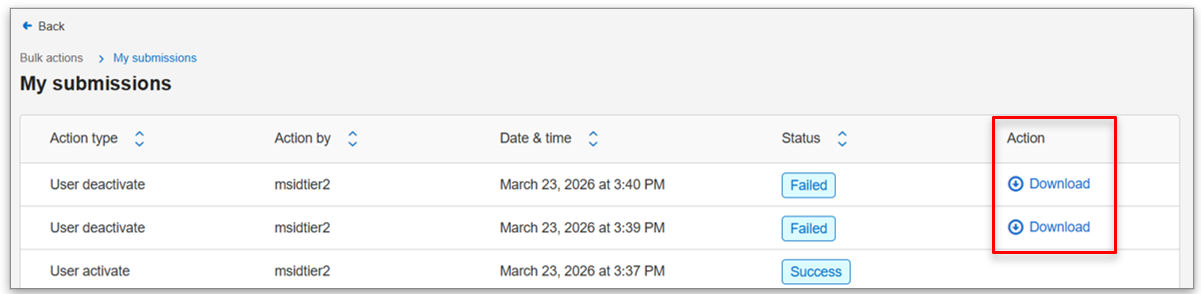
- Review the downloaded file to identify error details, such as an invalid user UUID.
Note:
- For issues with CSV files, contact the portal owner or application owner.
- If the Update email with prefix toggle is enabled, the peer persona receives a service request. Enter the incident ID from that request to proceed with the deactivation.
Previous:
Activate users
Next:
User activity
Share additional feedback to help us improve.
0/255
|
Powered by Aikyam @2025 All rights reserved

+1 866 451 2735
 +1 866 451 2735

+1 855 819 5909