

Last update:
Assign roles to users for legacy applications
Aug 21, 2026
For legacy applications, the group-inheritance policy is disabled. The business advocate must manually assign roles to individual users.
Note: Applications that were originally onboarded on Admin 1.0 and later transitioned to the current AIC (Admin Identity Console) version.
- Prerequisites
- Ensure that you are logged in to the Aikyam Identity Console with an application owner or group owner role.
- Define the necessary permissions, assign them to roles, and create a group by following steps 1-5.
To manually assign a role to a user in the legacy application: - In the left navigation pane, select Users. Alternatively, you can select Search Users on the Efficient User Management tile on the Dashboard.
- Select the User Type: Registered Users or Invited Users.
- To search the user to whom you want to assign a role, enter the user's email address, username, or UUID into the designated search field and click Search.
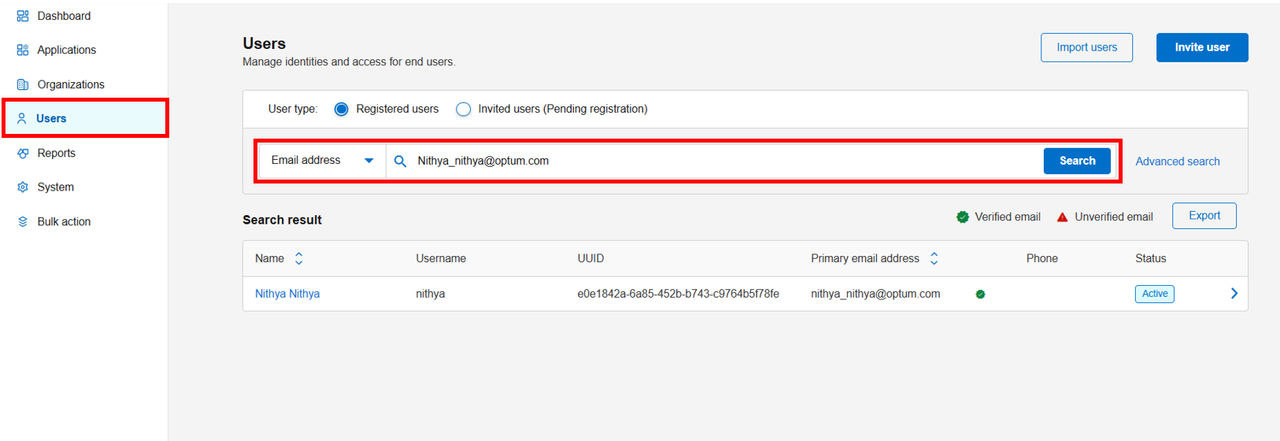
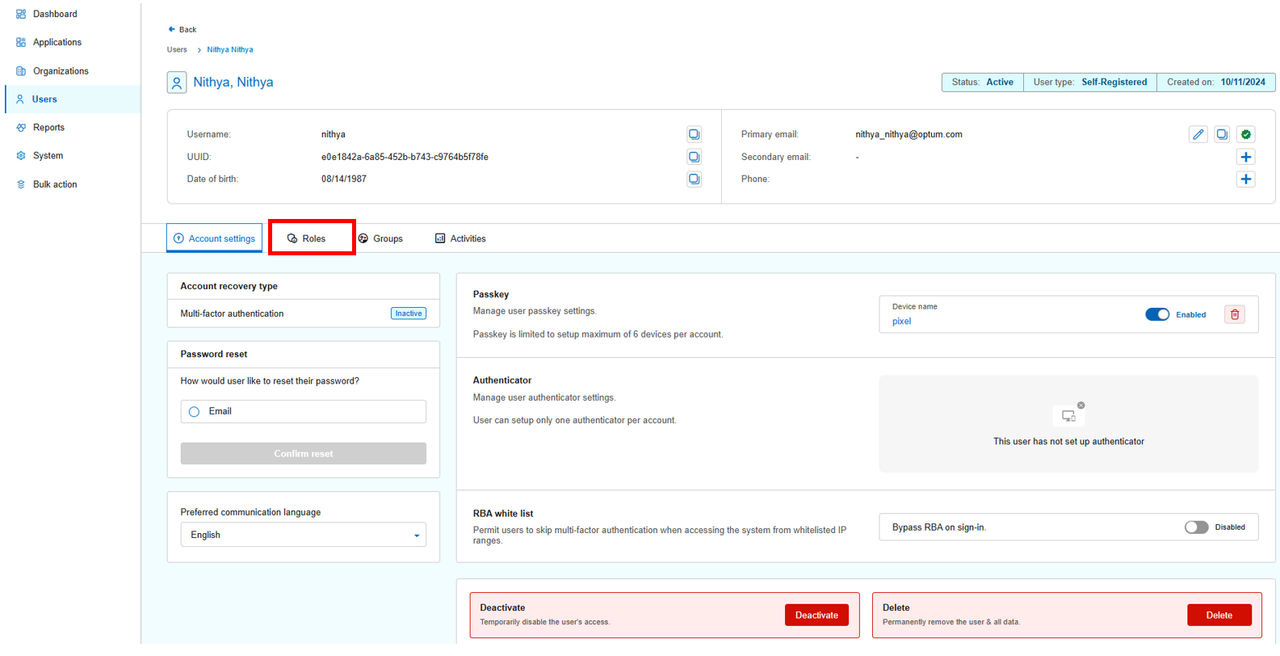
- Click the name of the user. The user's Account Setting page appears.
- Click the Roles tab.
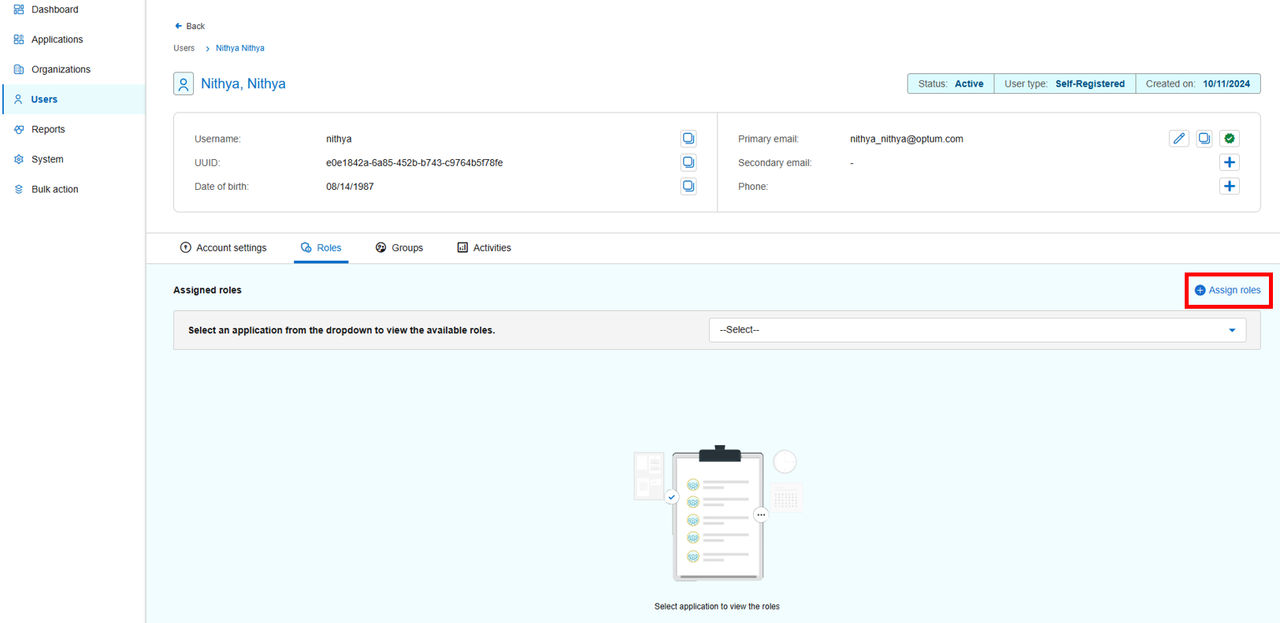
- In the Assigned Roles section, click Assign Roles.
- Select the following on the Assign Roles window.
- Application (Mandatory): Select the name of the application from the dropdown list.
- Application Group (Mandatory): Select the group name to which you want to tag the user.
- Role: Select the check box against the role that you want to assign to the user.
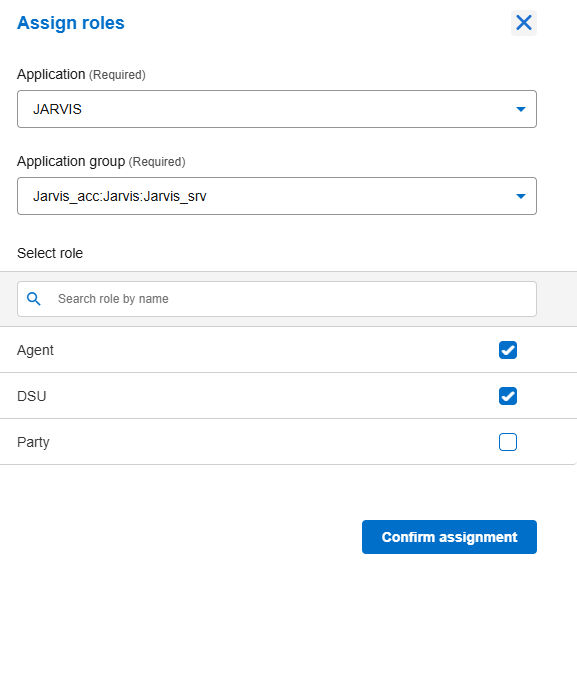
- Select Confirm Assignment.
Previous:
Configure group–level settings
Share additional feedback to help us improve.
0/255
|
Powered by Aikyam @2025 All rights reserved

+1 866 451 2735
 +1 866 451 2735

+1 855 819 5909